Open Users & Roles to manage organization membership. Owner and administrator permissions are required for changes; ordinary members see only the permitted read-only state.
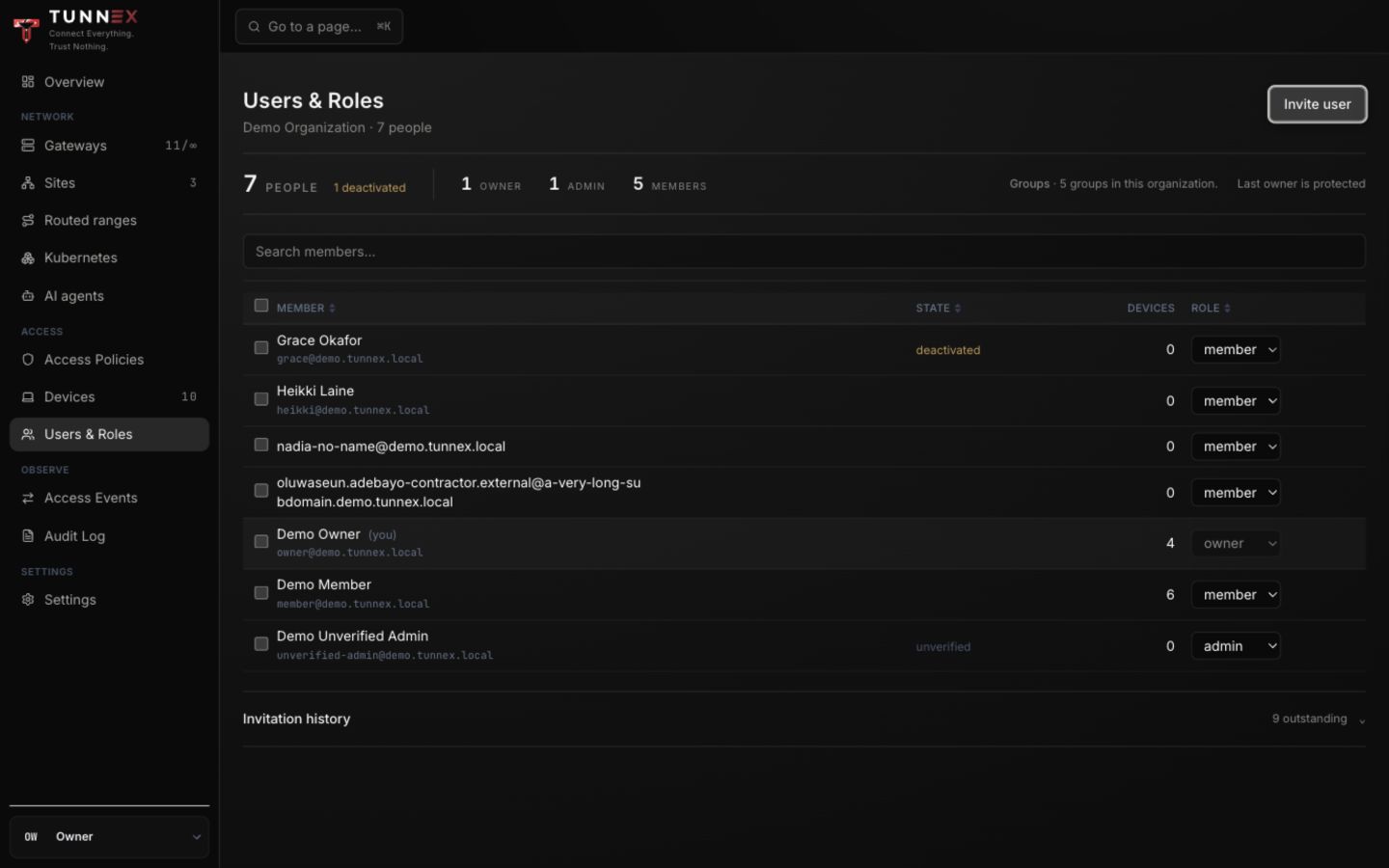
Invite a user
Section titled “Invite a user”- Select Invite user.
- Enter Email address.
- Choose Role: owner, admin, or member.
- Select Create invite.
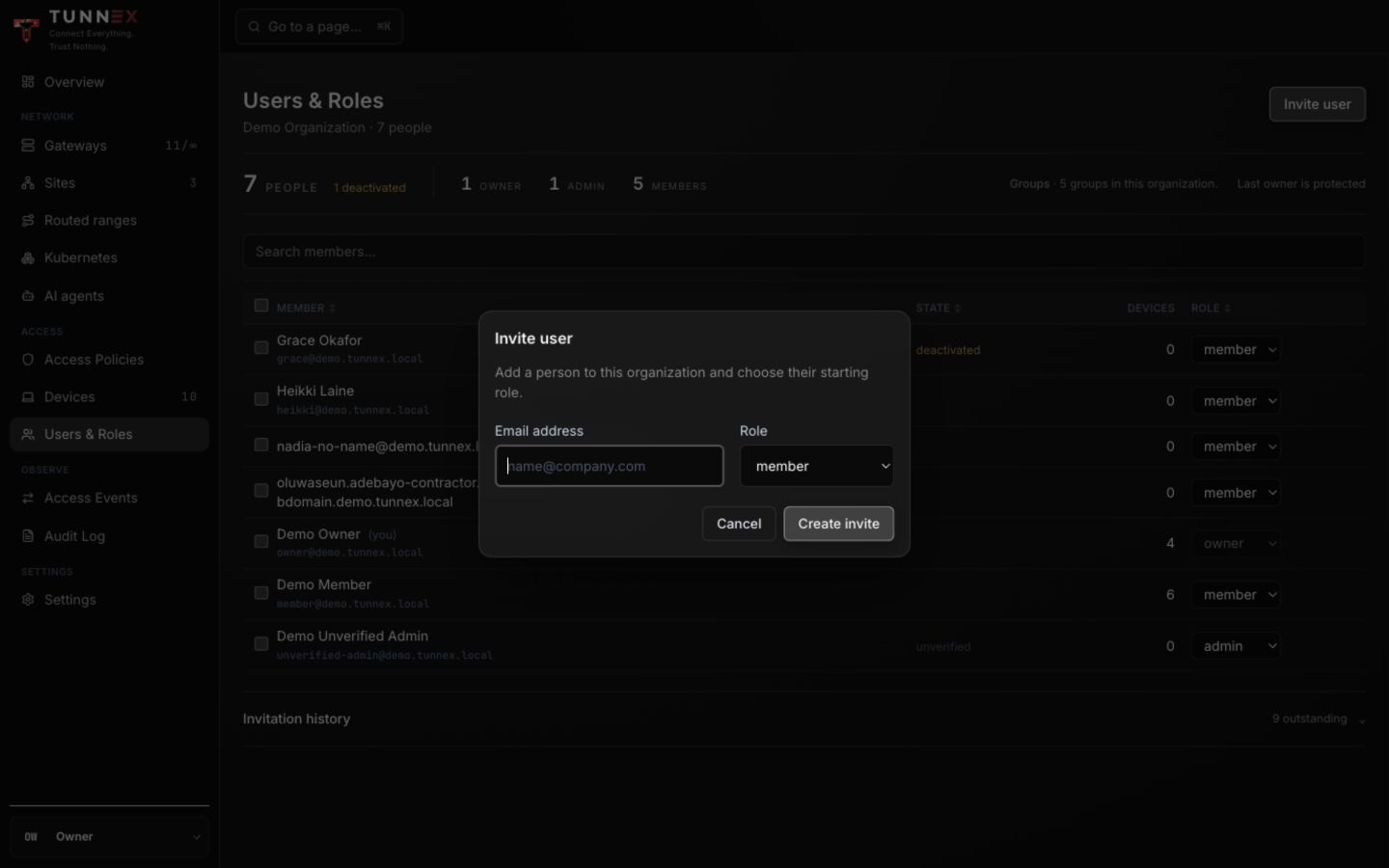
Role guidance:
- owner — organization settings, destructive lifecycle, and full delegated authority;
- admin — day-to-day user/network/security administration without every owner-only operation; and
- member — normal user/device access.
Start with member unless the person has an explicit operating responsibility.
Deliver the invitation
Section titled “Deliver the invitation”When SMTP is configured, Tunnex sends the invitation. When email delivery is off, the result shows a one-time Invitation link. Copy it immediately and send it through an authenticated private channel.
The link is a bearer credential. Do not paste it into chat rooms, screenshots, documentation, or tickets. Resending an invitation invalidates the old token.
Recipient flow
Section titled “Recipient flow”The recipient opens the invitation URL and sees Accept your invitation:
- Enter Your name.
- Enter a password of at least 12 characters.
- Select Accept invitation.
- On You’re in, select Go to sign in.
Acceptance creates or attaches the account and membership; it does not automatically sign the recipient in.
Review invitation history
Section titled “Review invitation history”Expand Invitation history and filter the list. Relevant states are:
| State | Meaning | Available action |
|---|---|---|
| Pending | Token can still be accepted | Resend or revoke |
| Expired | Time window elapsed | Resend or revoke |
| Accepted | Membership was created | Manage the member row |
| Revoked | Token was withdrawn or superseded | No reuse |
Errors such as invite_pending, invite_not_pending, invalid_role, and
account_deactivated are server decisions. Refresh the roster before retrying
an action after another administrator changed it.
Change a role
Section titled “Change a role”Use the role selector on the member row. Before reducing an owner to admin or member, verify another active owner can sign in.
Deactivate and reactivate
Section titled “Deactivate and reactivate”Deactivate an account when the person should no longer sign in. Deactivation is different from device revocation:
- Deactivate the user.
- Revoke their active devices if network access must stop immediately.
- Remove or replace rules that grant the person or their manual groups access.
- Review directory-sync health when membership is directory-managed.
Use Reactivate only after confirming the identity and role. A deactivated source can remain visible in a policy rule for auditability even though it matches no usable user session.
Reset 2FA
Section titled “Reset 2FA”Use Reset 2FA on the member row only after independently verifying the person. Resetting MFA does not reset their password and does not revoke every existing device. Follow your incident procedure when compromise is suspected.
Verify the result
Section titled “Verify the result”- The roster shows the expected role and state.
- A new recipient can sign in and sees the correct organization.
- The audit log contains the invitation or membership action.
- Access rules use the intended person/group, not a similarly named fixture.
Continue with MFA and account recovery before delegating administrative roles.