Alert delivery is configured per organization under Settings → Features. It complements metrics and logs; it does not make the control plane a full monitoring system.
Enable delivery
Section titled “Enable delivery”- Open Settings → Features.
- Confirm Alert delivery is enabled.
- Under Alert destinations, select Manage.
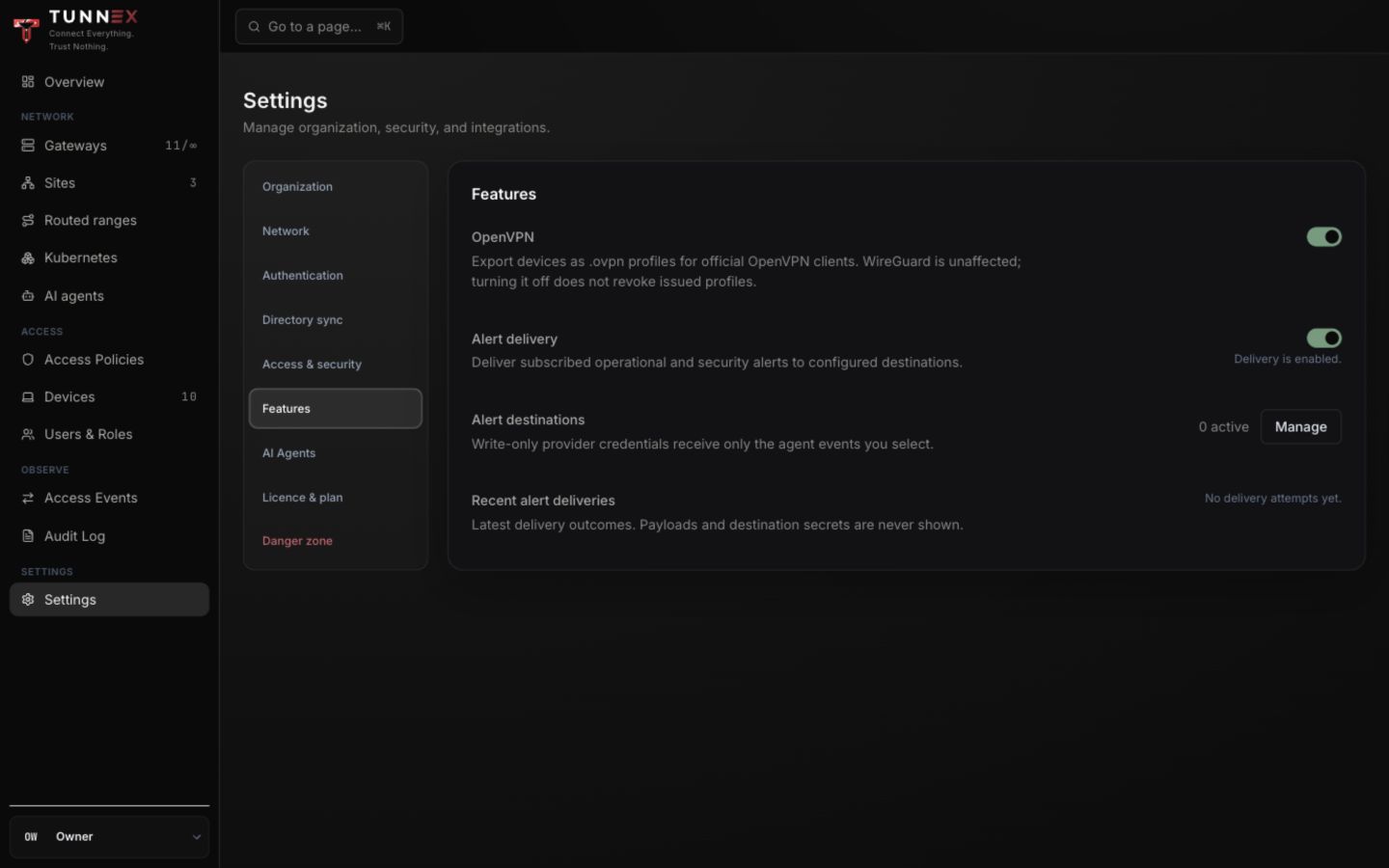
Turning the feature off stops new delivery attempts. It does not remove destination definitions or erase external notifications already sent.
Add a destination
Section titled “Add a destination”In Alert destinations:
- Enter Name.
- Choose Destination type: Generic webhook, Slack, Microsoft Teams, PagerDuty, Opsgenie, Discord, Google Chat, or Email.
- Enter the HTTPS endpoint or provider-specific destination.
- Choose Minimum severity: Info and above, Warning and above, or Critical only.
- Set Cooldown seconds to control repeated delivery.
- Leave Allow private-network destination off unless the control-plane host is intentionally allowed to reach that private address.
- Select the event types.
- Select Add destination.
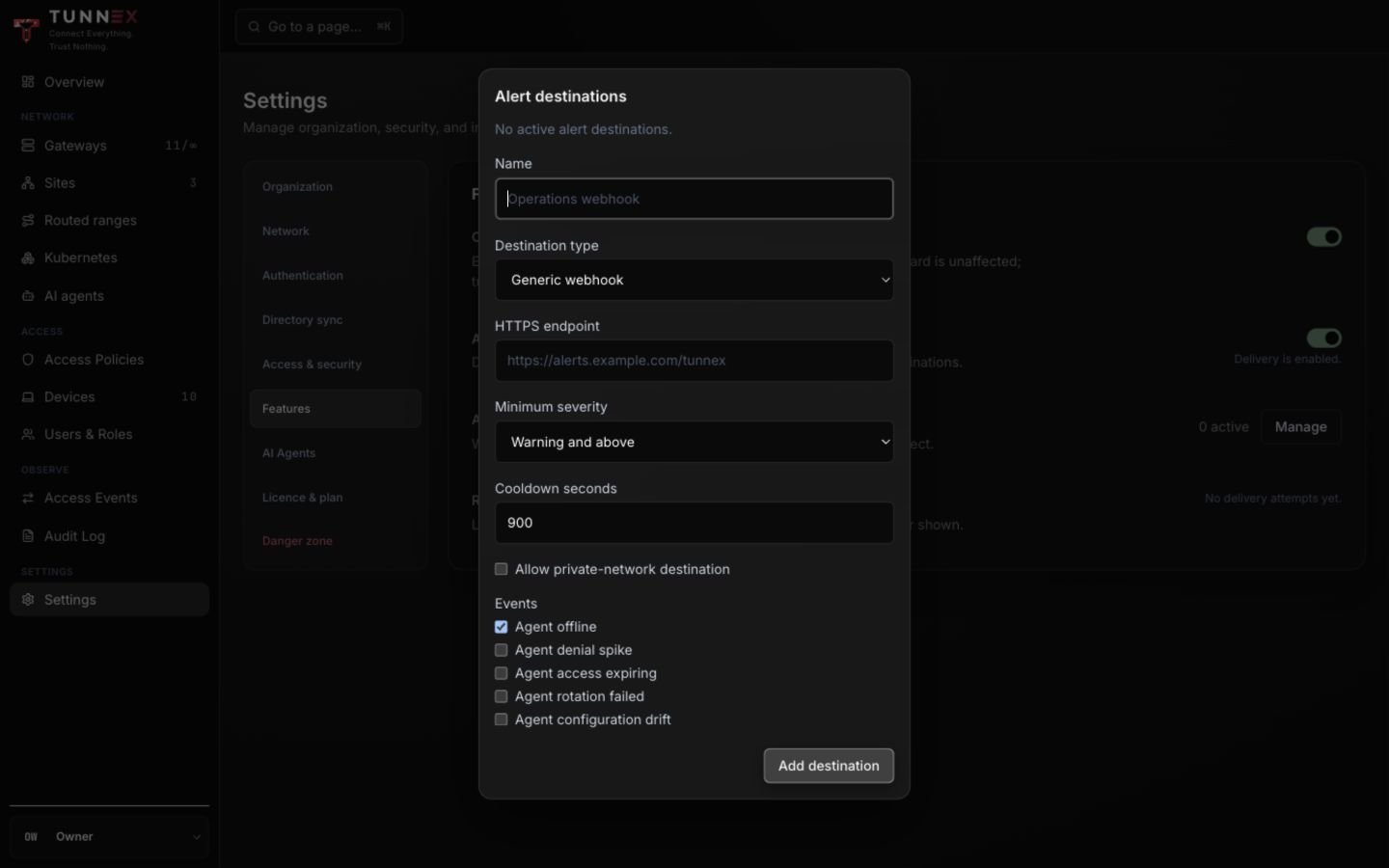
Current agent event choices include offline, denial spike, access expiring, rotation failed, and configuration drift. Subscribe only the team that can act on each event.
Secret and SSRF safety
Section titled “Secret and SSRF safety”Destination credentials are write-only. Never put a webhook token in a screenshot or documentation example. Prefer a dedicated provider credential with the narrowest scope and rotate it after any suspected disclosure.
Allowing a private-network destination expands where the control plane may send requests. Use an exact trusted endpoint, provider firewall rules, and a dedicated receiver; do not use it as a generic URL tester.
Verify delivery
Section titled “Verify delivery”After adding a destination:
- Confirm the destination shows active.
- Generate or use an approved test event where the provider supports it.
- Check Recent alert deliveries for outcome and timestamp.
- Verify the external destination received one notification.
- Confirm cooldown behavior for repeats.
The console intentionally does not display payload secrets or destination credentials in delivery history. No delivery attempts means no qualifying event has been sent; it is not proof that the destination works.
Investigate failures
Section titled “Investigate failures”Check in order:
- Alert delivery is enabled.
- Destination is active and subscribed to that event.
- Event severity meets the threshold.
- Cooldown is not suppressing the repeat.
- Control-plane DNS/HTTPS can reach the provider.
- Provider credential and endpoint are still valid.
- Private-address protection is not correctly refusing an unsafe endpoint.
Correlate the event with Access events and audit and bounded API logs. Do not weaken the destination policy merely to make a test green.