The initial administrator is a bootstrap ceremony, not a permanent shared credential. Complete it from a private workstation and move the result into normal named-user administration.
1. Sign in
Section titled “1. Sign in”Open the public base URL from the installer. The page is headed Welcome back.
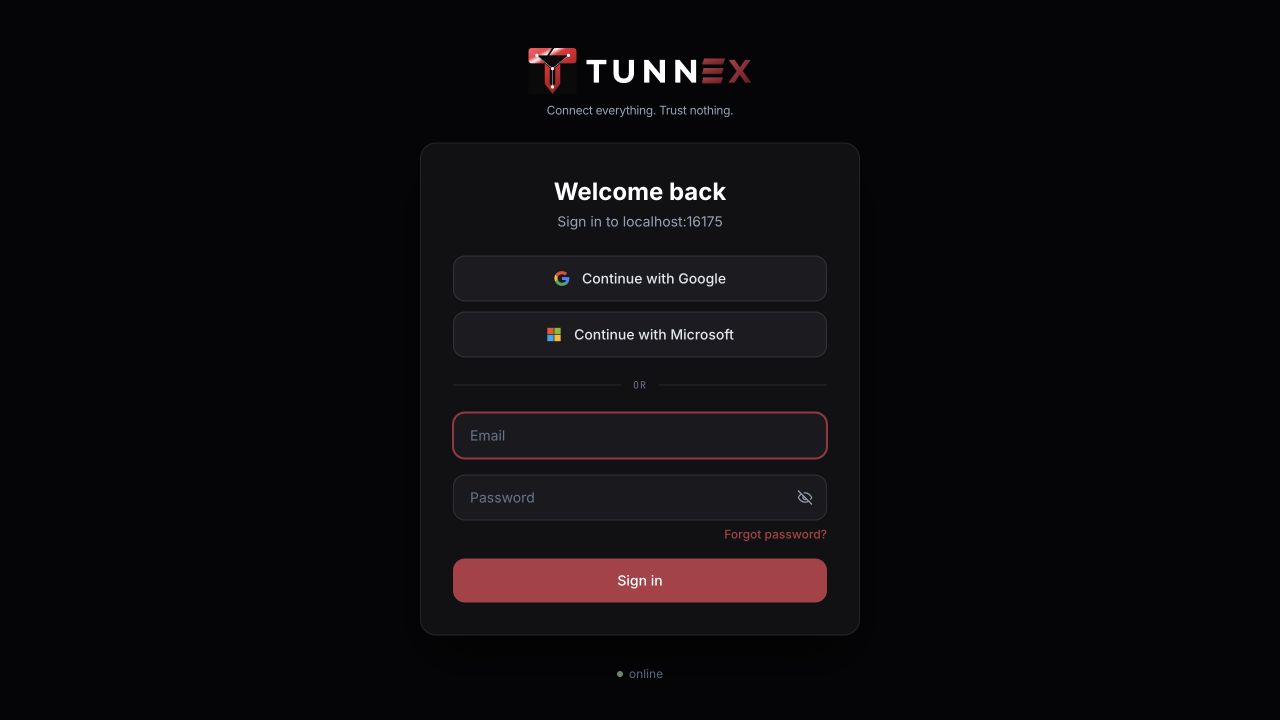
- Enter the bootstrap email.
- Enter the one-time password printed by the installer.
- Select Sign in.
The control plane blocks organization routes until the forced password change is complete.
2. Set a new password
Section titled “2. Set a new password”On Set a new password:
- Enter Current password using the bootstrap value.
- Enter New password.
- Repeat it in Confirm new password.
- Select Set password.
If the confirmation does not match or the API rejects the password, the form stays open. Do not reuse the bootstrap password elsewhere.
3. Verify email when required
Section titled “3. Verify email when required”A user without a verified email may see Verify your email instead of the organization form. Follow the link delivered by SMTP, or use the manual link handoff your deployment administrator received when mail delivery is disabled.
Verification, reset, and invitation URLs are bearer secrets. Share them through an authenticated private channel and never publish them in docs or screenshots.
4. Create the organization
Section titled “4. Create the organization”On Create your organization:
- Enter Organization name, for example
Acme Corp. - Review the generated Slug. It is normalized to lowercase and becomes the confirmation value for destructive organization operations.
- Select Create organization.
Errors such as invitation_required or org_limit_reached are authoritative;
do not try to work around them by creating another bootstrap user.
After creation, Settings → Organization shows the active organization and the organization switcher.
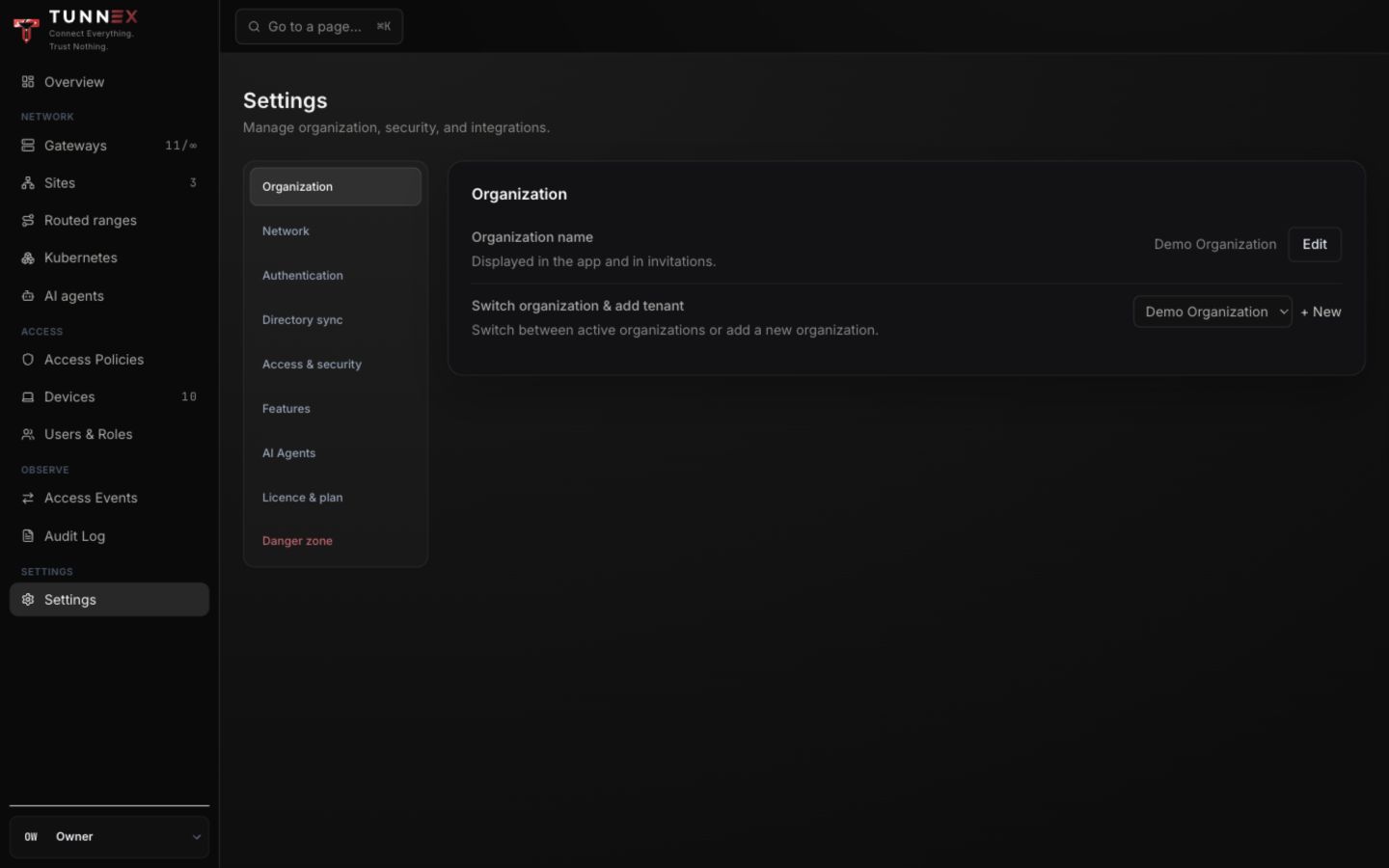
The fixture contains two synthetic organizations to demonstrate switching.
5. Protect the owner role
Section titled “5. Protect the owner role”The creator becomes an owner. Before production:
- Invite a second named administrator or owner.
- Confirm both people can sign in independently.
- Configure MFA for both accounts.
- Record who controls the host, DNS, backup key custody, and IdP fallback.
Do not deactivate owners sequentially without confirming a usable owner remains. The current owner-count guard can include a deactivated owner; keep an active, tested recovery owner until that edge case is removed.
Password reset
Section titled “Password reset”From the sign-in page, select Forgot password?, enter the account email, and select Send reset link.
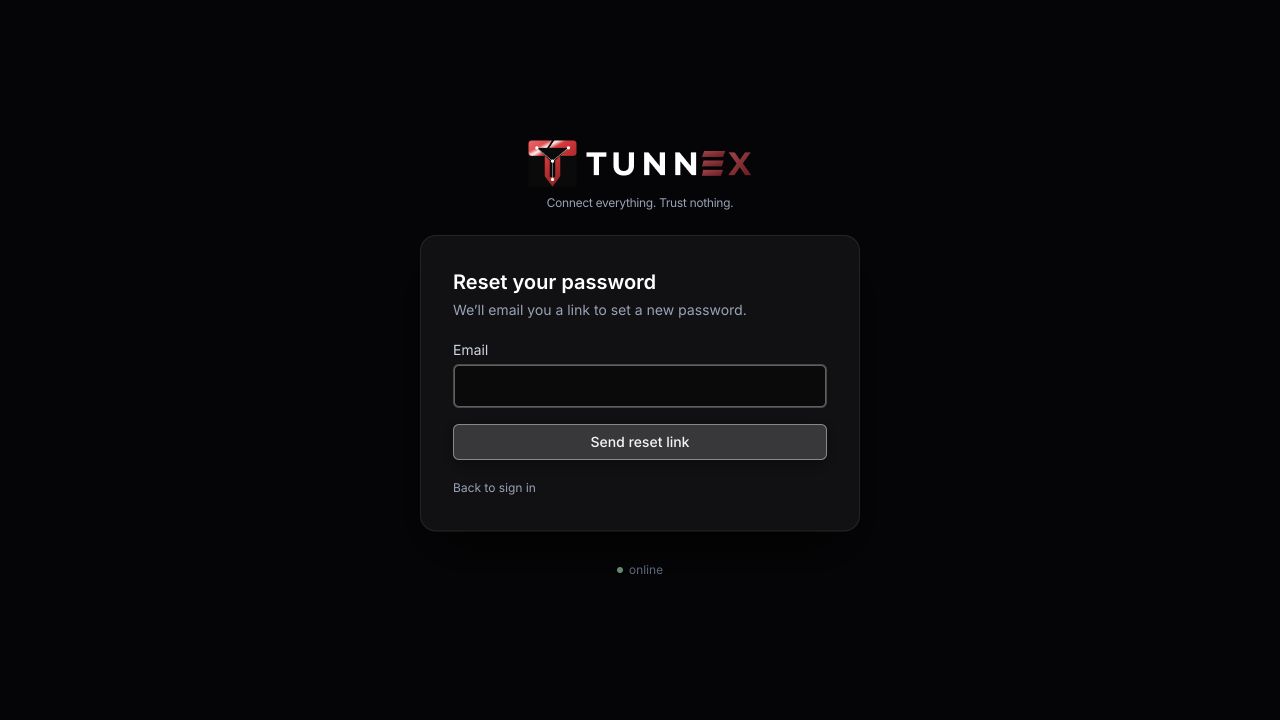
When SMTP is disabled, email delivery cannot complete even though local password sign-in still works. An organization administrator can also use Users & Roles → Reset 2FA for another user; password reset and MFA reset are separate operations.
Expected result
Section titled “Expected result”You should reach Overview with your organization name and fleet summary.
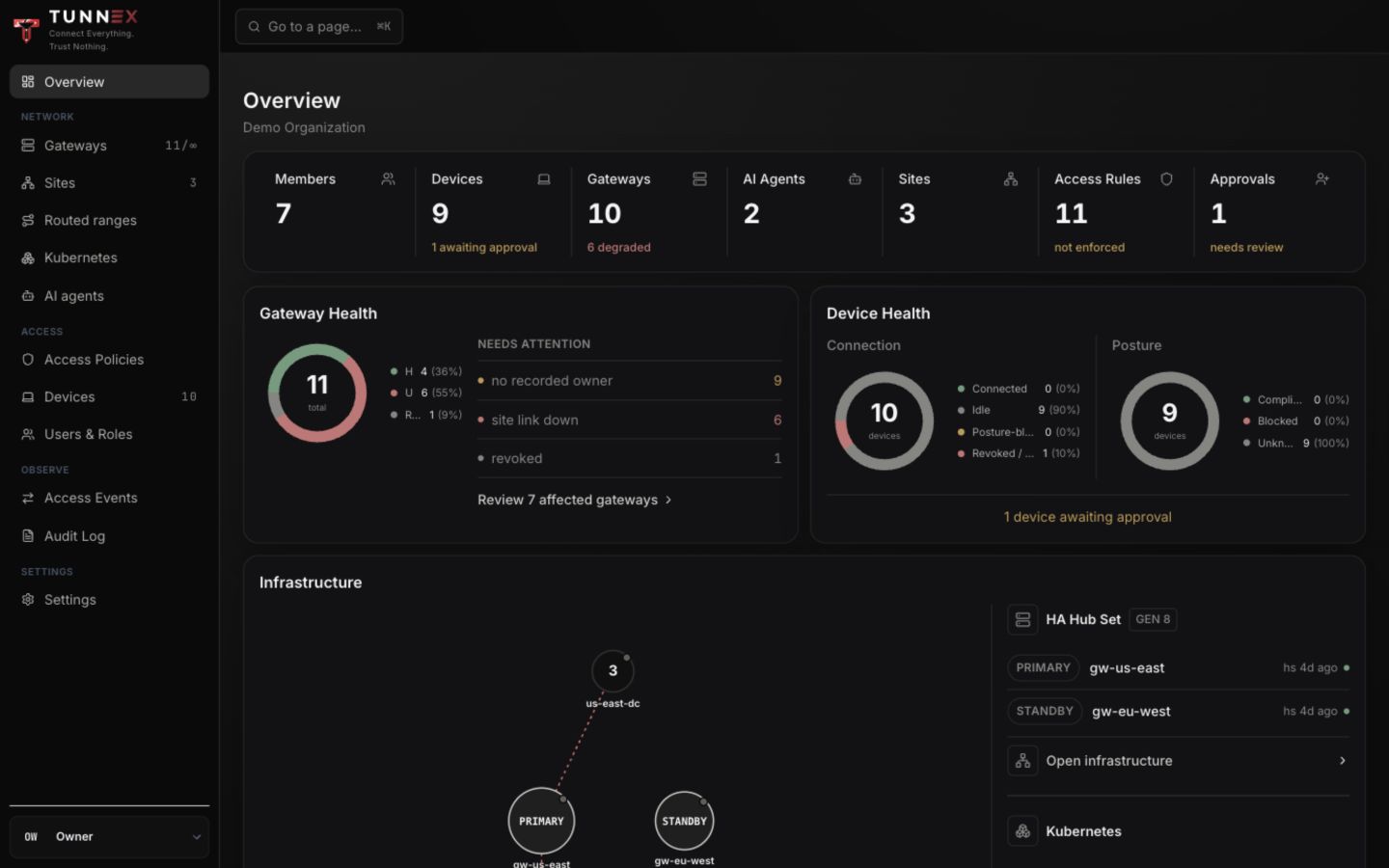
Before enrolling anything, make the initial database-plus-master-key backup described in Backup and restore. Then continue with Gateways.