A site represents a physical or cloud location. Its approved private ranges are reachable through one or more bound gateways.
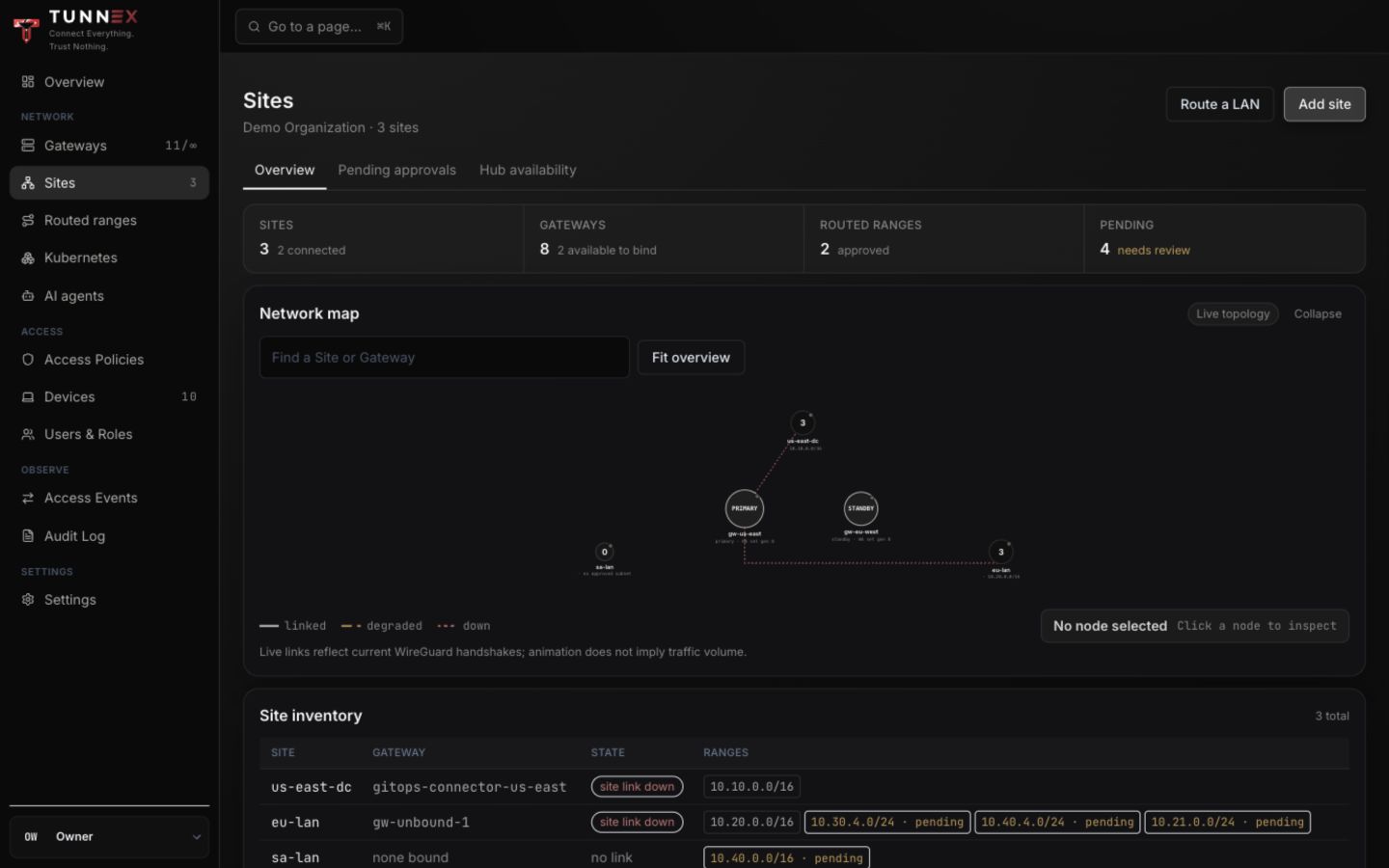
Fast path: route a LAN in one screen
Section titled “Fast path: route a LAN in one screen”Use this path when an active gateway is not already bound to another site.
- Open Sites.
- Select Route a LAN.
- Choose Gateway.
- Enter LAN CIDR, for example
10.20.0.0/16. - Optionally enter a site name that identifies the location.
- Select Route LAN.
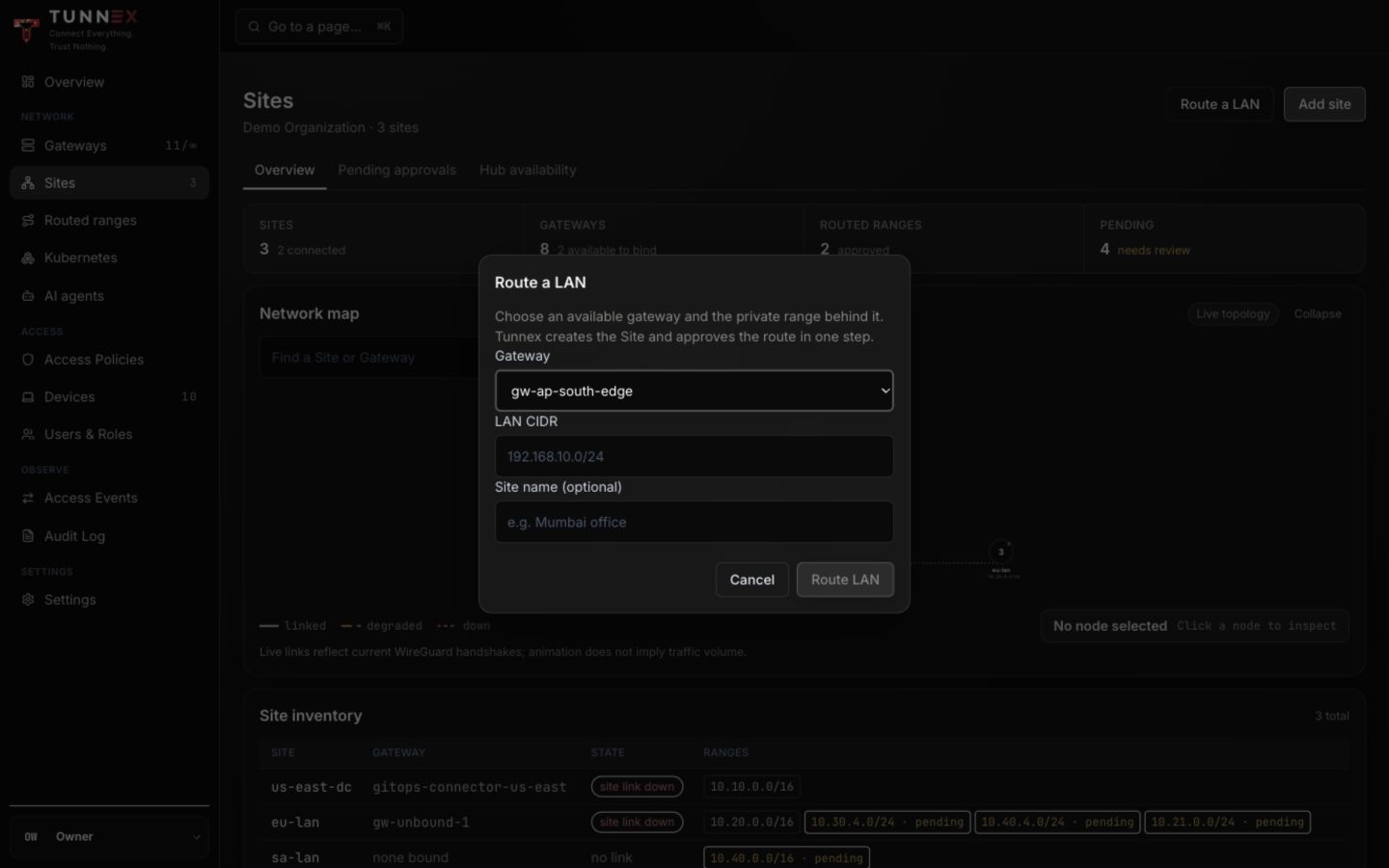
This operation registers the site, binds the gateway, advertises the subnet, and approves it as one transaction. Expected result: the new site and approved CIDR appear in topology and Routed ranges.
Explicit path: create then bind
Section titled “Explicit path: create then bind”Use the multi-step path when you need a deliberate approval boundary or several gateways.
1. Add the site
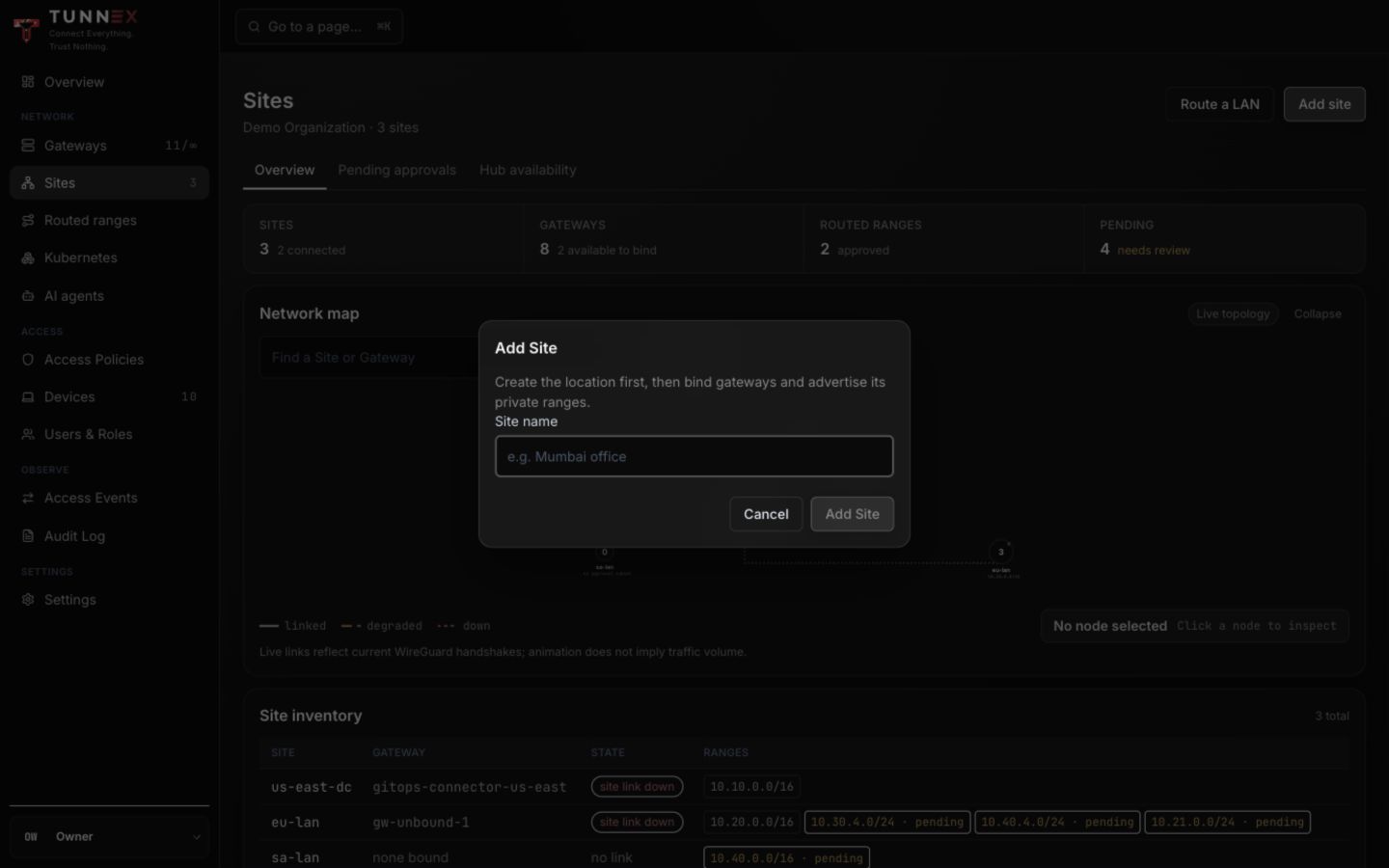
Section titled “1. Add the site”- Select Add site.
- Enter Site name, for example
Mumbai office. - Select Add Site.
2. Bind a gateway
Section titled “2. Bind a gateway”Open the site, select Bind a gateway, choose Gateway node, and select Bind. Only active eligible gateways should be used for traffic.
3. Advertise a subnet
Section titled “3. Advertise a subnet”Select Advertise a subnet, enter the exact LAN CIDR, and submit it. The range remains pending until an authorized operator approves it.
4. Approve the range
Section titled “4. Approve the range”Open Pending subnet approvals, verify the site, gateway, and CIDR, then select Approve.
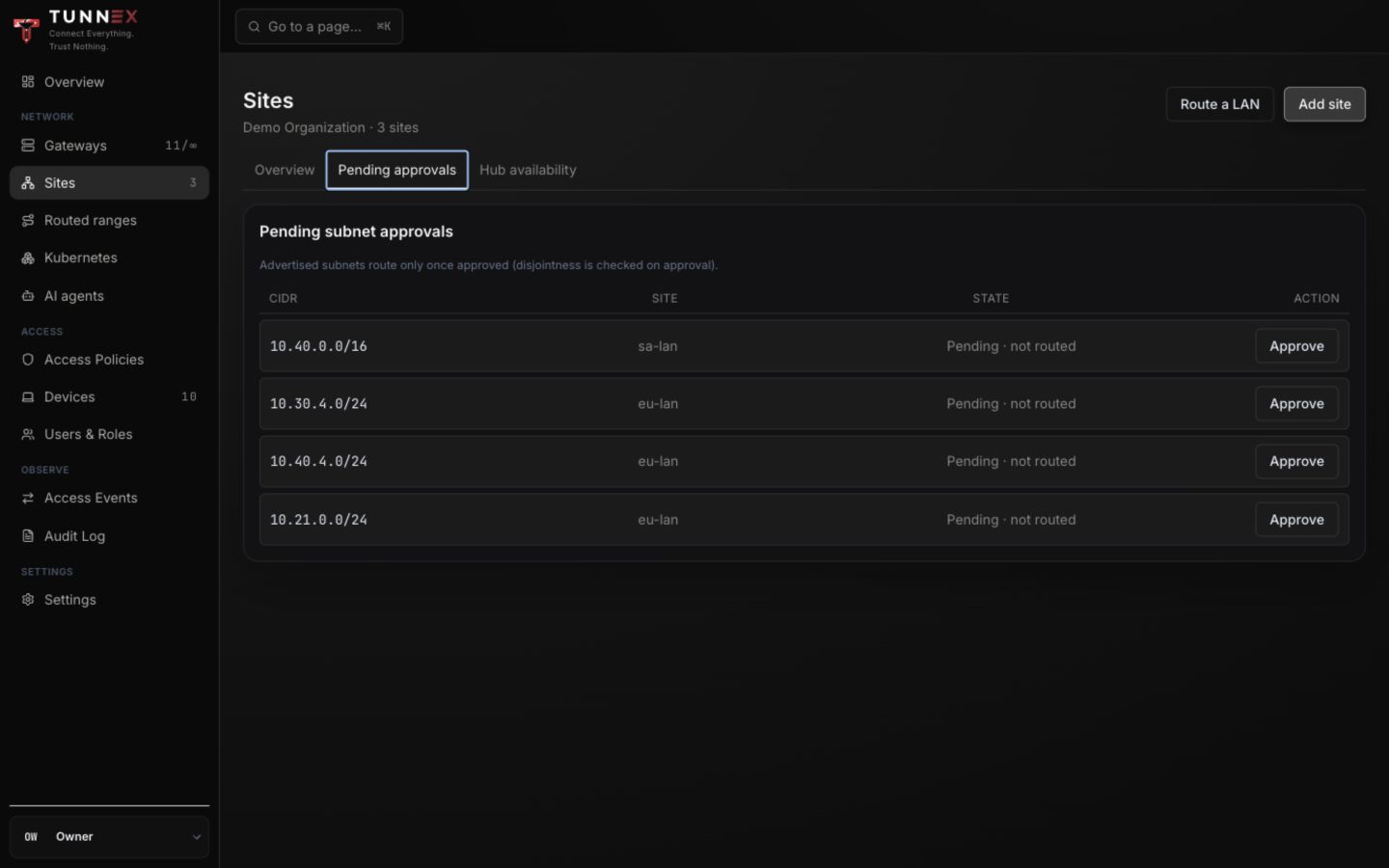
Do not approve an unfamiliar or overlapping range merely to clear the queue. A competing route can make the destination ambiguous. If the second site enables cross-site routing, review the warning and any incompatible gateway before using Approve anyway.
Verify routing
Section titled “Verify routing”From a connected device:
ip route get 10.20.0.10ping -c 3 10.20.0.10Then test the actual application port; ICMP may be intentionally blocked. A healthy WireGuard handshake plus failed LAN traffic usually means host/cloud forwarding or the return route is missing.
Cloud return routes
Section titled “Cloud return routes”Tunnex configures the gateway host, not your cloud route table.
- AWS: route the remote/device pool to the gateway ENI or instance and disable source/destination checking where required.
- Azure: enable NIC IP forwarding and point a UDR for the remote/device pool at the gateway virtual appliance.
- Other environments: add the equivalent route back to the gateway.
Repeat return routing for every source pool that must reach the LAN.
Gateway high availability
Section titled “Gateway high availability”Bind at least two gateways to the site, then open Hub availability or the site’s Hub high-availability controls.
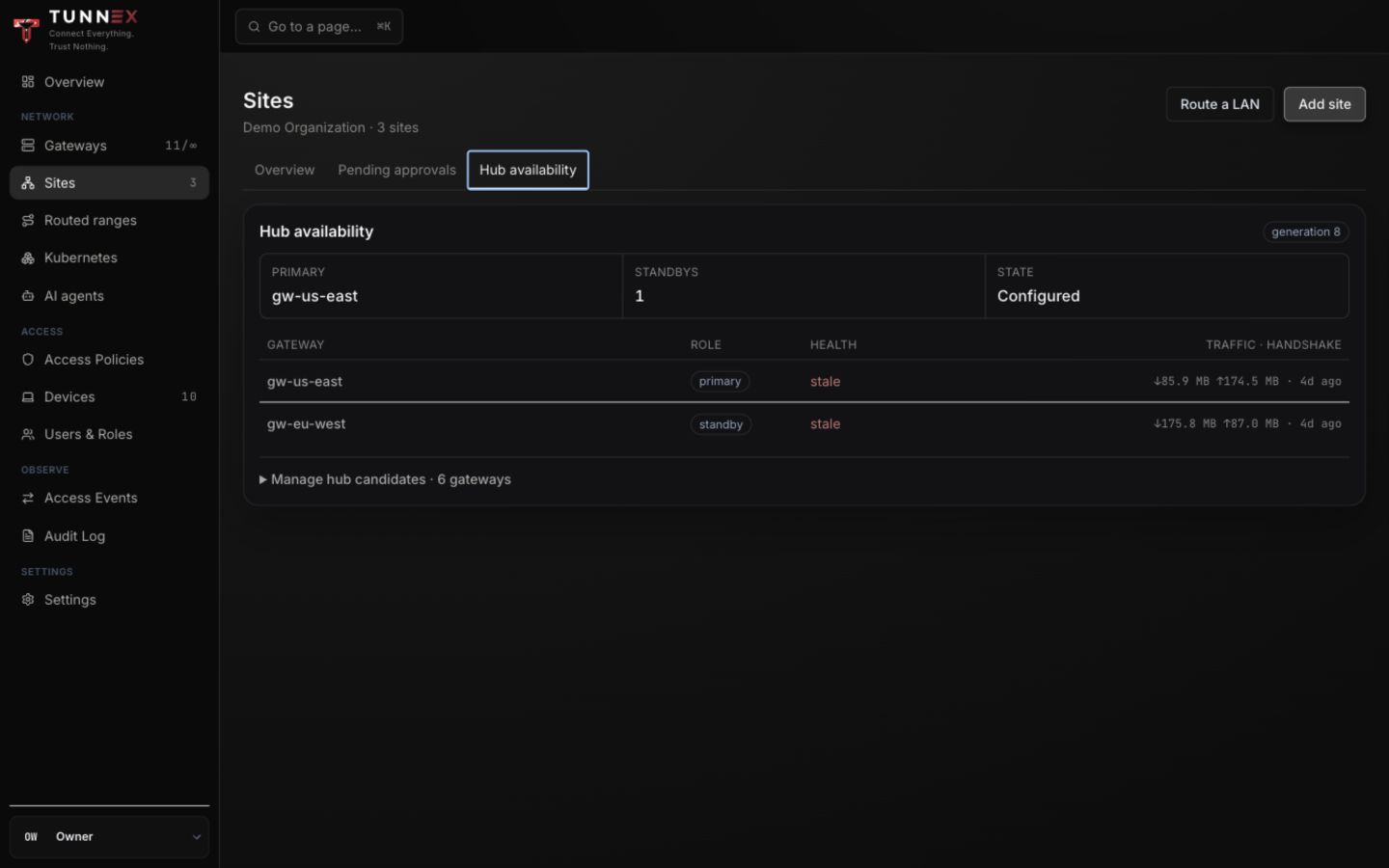
- Select the desired active gateway and pin as primary.
- Order standbys with pin #N; the smaller number has higher priority.
- Use unpin to return a gateway to automatic selection.
- Test a planned failover while watching access events and real traffic.
Tunnex cannot repoint an AWS route table, Azure UDR, or external NAT rule during promotion. Automate or manually update that external route when the active gateway changes.
Remove a subnet or site
Section titled “Remove a subnet or site”Removing an approved subnet withdraws it when gateways next reconcile and also removes dependent DNS forwards. Deleting a site requires typing its exact name and previews affected rules, routes, and bindings. GitOps-managed or immutable template references can block deletion; remove the owning declaration instead of forcing the dashboard state.
Use Routed ranges and private DNS to review the resulting address map and name-resolution path.